This guide has been developed to guide users through the steps of creating a new household for project utilizing SHELTERPOINT. ShelterPoint is an optional feature in our HMIS software and is only recommended for large Emergency Shelters. This guide applies to only building the household; it does not review how to include or exclude household members within entry/exits, services, or other items within the system.
Creating New Households when Creating a New Client
- Click on the green plus to check the Head of Household into a bed
- Enter the Head of Household's information to search for the client in HMIS. Click Add Client with this Information for a brand new client to HMIS
- Click Add Client and Add NEW Household

- Select the household type from the Household Type dropdown

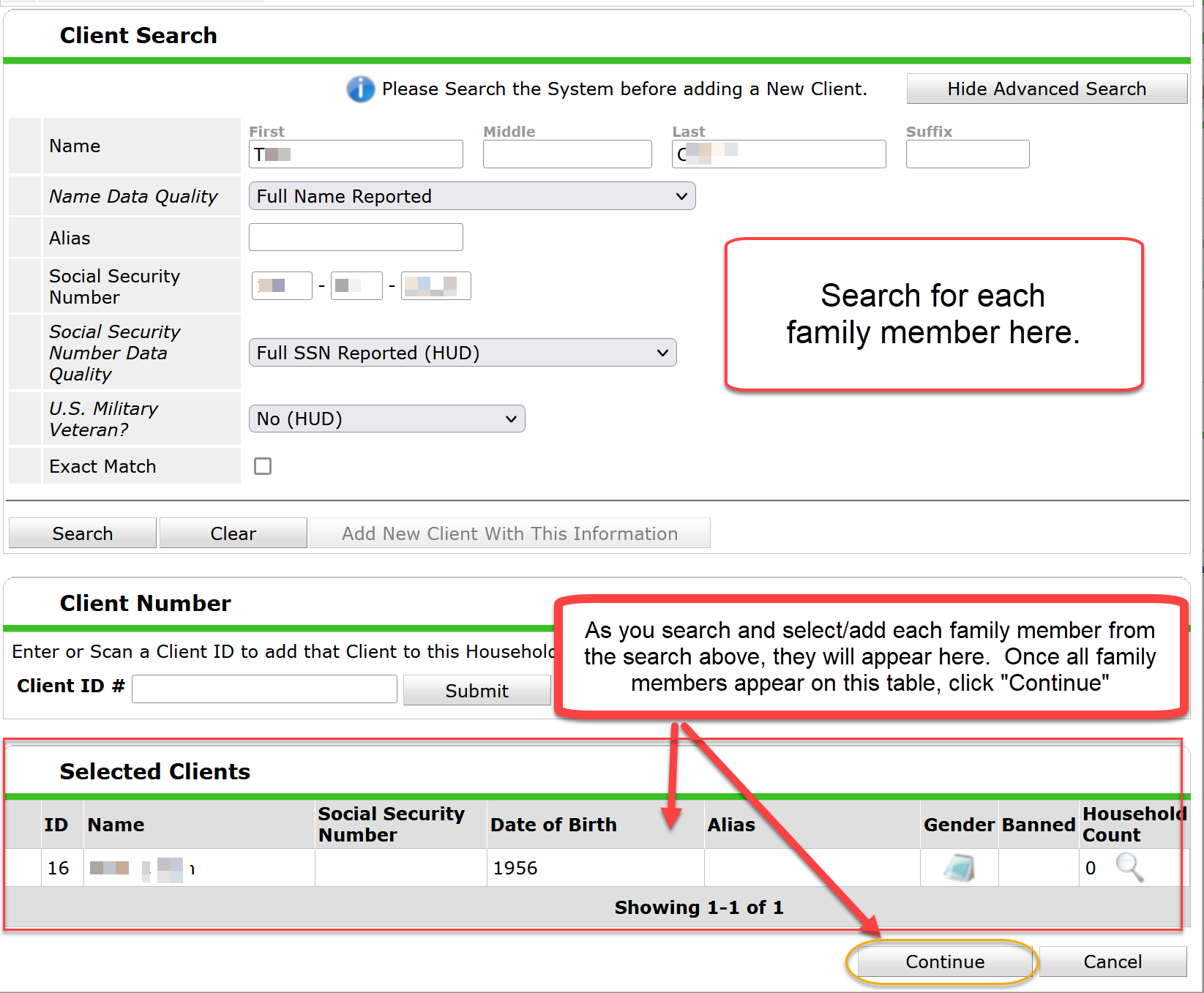
- Use the Client Search section to search for and/or create new clients.
- If a client is already in the system, that client will appear in the Client Results table. You can add the client to this household by clicking the green plus sign.
- Note: Please ensure that any client existing in the system is the specific person you are looking for by matching the client's SSN and/or DOB. Try searching three ways before creating a new profile.
- If no client appears in the Client Results table, you will need to create a new client profile by going back up, filling in all of the answers in the Client Search table, and then clicking the Add New Client with New Information button.
- Once a client has been selected, the client will appear in the Selected Clients table. Once all clients are listed in the table, please click the Continue button.
- Note: If someone is mistakenly added to the household, that person can be removed from the household by clicking the red minus sign next to the client.
- Note: If someone is mistakenly added to the household, that person can be removed from the household by clicking the red minus sign next to the client.
- If a client is already in the system, that client will appear in the Client Results table. You can add the client to this household by clicking the green plus sign.
- The Household Information window then comes up. On the Household Members table, please answer Head of Household and Relationship to Head of Household for each household member.

- Click the Save & Exit button to move on in the workflow to add household members to the Bed List and add Entry/Exits
Creating New Households when Entering an Existing HMIS Client into a bed
- Click on the green plus to check the Head of Household into a bed
- Search for the Head of Household.
- Click arrow next to Household Overview and click Start New Household

- Select the household type from the Household Type dropdown.
- Use the Client Search section to search for and/or create new clients.
- If a client is already in the system, that client will appear in the Client Results table. You can add the client to this household by clicking the green plus sign.
- Note: Please ensure that any client existing in the system is the specific person you are looking for by matching the client's SSN and DOB.
- If no client appears in the Client Results table, you will need to create a new client profile by going back up, filling in all of the answers in the Client Search table, and then clicking the Add New Client with New Information button.
- Once a client has been selected, the client will appear in the Selected Clients table. Once all clients are listed in the table, please click the Continue button.
- Note: If someone is mistakenly added to the household, that person can be removed from the household by clicking the red minus sign next to the client.
- Note: If someone is mistakenly added to the household, that person can be removed from the household by clicking the red minus sign next to the client.
- If a client is already in the system, that client will appear in the Client Results table. You can add the client to this household by clicking the green plus sign.
- The Household Information window then comes up. On the Household Members table, please answer Head of Household and Relationship to Head of Household for each household member. Remember, this is the first place you will select Relationship to Head of Household, but not the last!
- Click the Save & Exit button to move on in the workflow to assign household members to beds and to add Entry/Exits.
ARE YOU LOOKING FOR MORE RESOURCES? BELOW ARE SOME SUGGESTED RELATED ARTICLES!
Adding Additional Household Members Mid-Stay (ShelterPoint)
Comments